
Agent Orchestration
Detect, coordinate, and quality-gate multiple AI coding agents working in parallel.
Agent Orchestration
Mosaic is a Multi-agent Orchestration Station for AI Coding. Its core purpose is observing, coordinating, and quality-gating multiple AI coding agents working in parallel. This page covers everything from automatic agent detection to team-based workflows with messaging, work claiming, and git isolation.
Supported Agents
Mosaic recognizes and integrates with 10 coding agent providers out of the box. Every provider is auto-detected when it runs in a Mosaic terminal and can be auto-revived after crashes.
| Provider | One-Click Launch | Auto-Revive |
|---|---|---|
| Claude Code | Yes | Yes |
| Codex | Yes | Yes |
| OpenCode | Yes | Yes |
| Gemini CLI | Yes | Yes |
| Kilo Code | Yes | Yes |
| Goose | -- | Yes |
| Amazon Q | -- | Yes |
| Cline | -- | Yes |
| Amp | -- | Yes |
| Kiro | -- | Yes |
All ten providers share the same detection, activity tracking, and team orchestration infrastructure.
Agent Detection
Mosaic automatically detects when a recognized coding agent is running in any terminal pane. No manual configuration is needed -- just launch an agent and Mosaic identifies the provider, starts tracking its activity, and enables all orchestration features.
Activity States
Each pane tracks the agent's current activity:
| State | Meaning |
|---|---|
| idle | Agent is waiting for input (prompt visible) |
| working | Agent is actively processing (generating code, reading files) |
| waiting | Agent is paused, waiting for user confirmation or external input |
| done | Agent has completed its task |
State transitions are debounced to avoid rapid flickering, producing stable and reliable indicators.
Agent State Badge
Every terminal tab displays a visual badge reflecting the agent's current activity state. This gives you an at-a-glance view of what every agent is doing across all your panes without switching to each one.
Quick-Start Agent Buttons
The terminal header includes one-click launch buttons for the most commonly used agents:
- Claude Code, Codex, OpenCode, Gemini CLI, Kilo Code
Click a button to spawn that agent in the current terminal pane. The agent launches with the correct environment and workspace context already set up.
Tip: Configure which agent buttons appear in Settings > Behavior & Confirmations under "Quick-start agents." Hide providers you do not use to keep the header clean.
Auto-Revive
Mosaic remembers which agents were running when you close the app. On next launch, it automatically restarts them and resumes their sessions -- no manual re-launching needed.
- Mosaic detects that an agent process has ended (whether from a crash, app close, or unexpected exit)
- It finds the agent's most recent session
- The agent is restarted with its resume flag, picking up where it left off
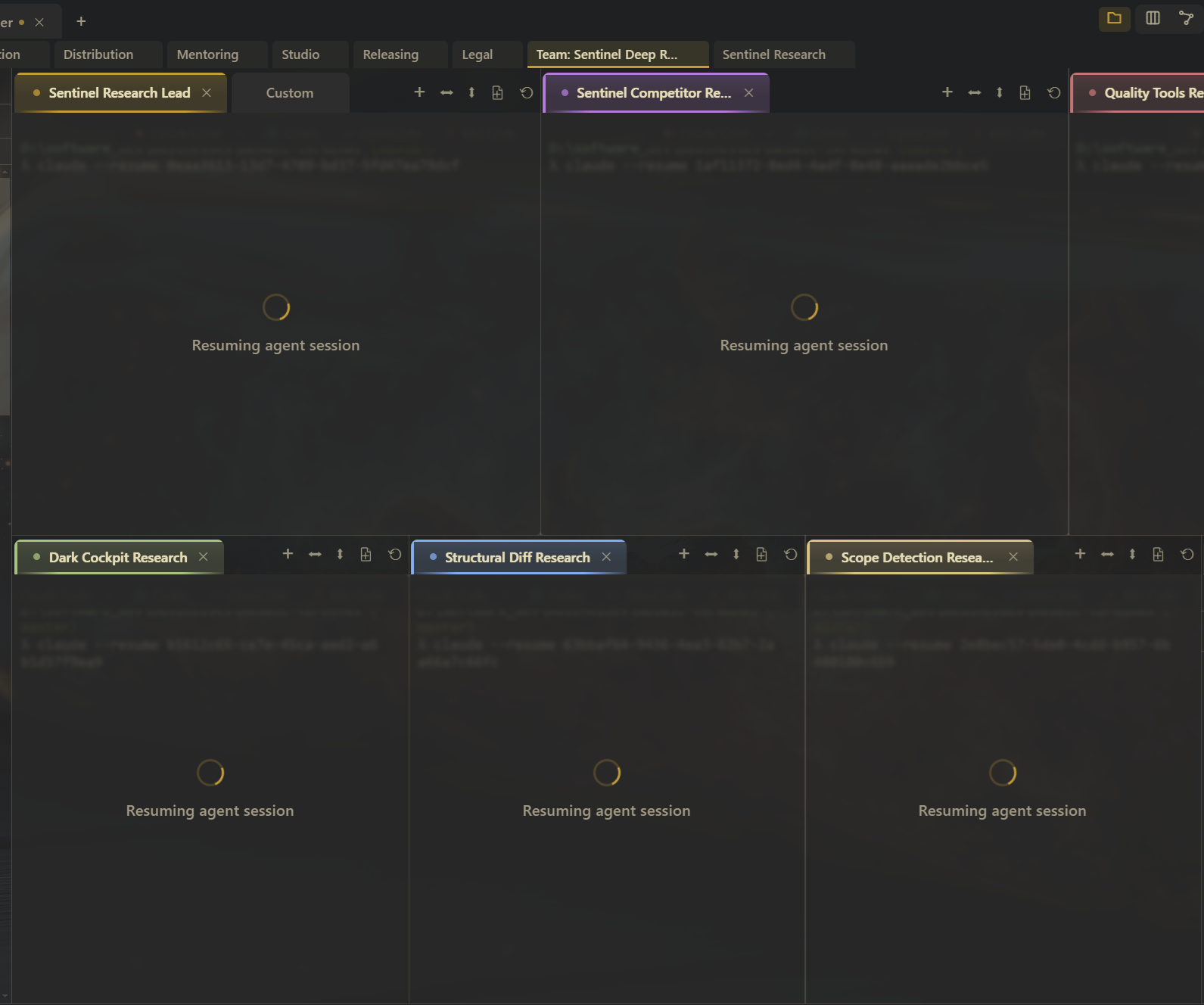
Auto-revive is configurable per provider in Settings > Behavior & Confirmations. You can enable it for long-running agents like Claude Code while keeping it off for short-lived tasks.
Tip: Auto-revive is most valuable for agents that maintain session state across turns. For one-shot tasks, you may prefer to launch fresh rather than resuming a stale session.
Teams
Teams let you run multiple agents collaboratively on a shared task, each in their own pane with dedicated messaging and status tracking.
Creating a Team
Create a team and it gets:
- A dedicated context (isolated tab group) within the active workspace
- A unique team ID for all subsequent operations
- Automatic cleanup when the team is dissolved
Spawning Agents
Add agents to a team and they are automatically:
- Placed in the team's context as new panes in a grid layout
- Configured with access to all Mosaic tools
- Registered in the team roster with a name and color
- Given instructions explaining the team protocol
Inter-Agent Messaging
Agents within a team communicate through a structured messaging system:
| Operation | Description |
|---|---|
| Send message | Specify sender, recipient, subject, and body |
| Read inbox | Check for messages, optionally filtered by unread status |
| Mark as read | Track which messages have been processed |
Agents can send and receive messages to coordinate their work, report progress, ask questions, and share findings.
Status Tracking
Each agent in a team reports its current status:
| Status | Meaning |
|---|---|
| idle | Waiting for work |
| working | Actively processing a task |
| done | Task completed successfully |
| error | Something went wrong |
Status updates are visible on the agent's terminal tab badge, so the orchestrator always knows the state of every team member.
Orchestrator Notification
When an agent finishes its task, Mosaic auto-injects a completion message directly into the orchestrator's terminal. The message arrives when the orchestrator is at its prompt, so it can react immediately.
Work Claiming
Work claiming provides race-free task assignment for multi-agent workflows, ensuring no two agents work on the same task.
How It Works
- An agent requests to claim a task (from the roadmap or project board)
- Mosaic checks that no other agent already holds the claim
- If the task has unresolved dependencies, the claim is blocked
- On success, the project board card moves to "In Progress" automatically
- On completion, it moves to "Done" with a structured report
Lease Expiration
Claims operate on a time-limited lease. This prevents abandoned tasks from being locked forever:
- If an agent's terminal exits, the claim is automatically revoked
- Stale leases are detected and cleaned up automatically
- Agents can renew their lease if they need more time
Board Auto-Sync
The project board updates itself based on claim lifecycle:
| Event | Board Action |
|---|---|
| Agent claims task | Card moves to "In Progress" |
| Agent completes task | Card moves to "Done" |
| Lease expires | Card returns to previous column |
Zero orchestrator overhead -- the board reflects actual work status without anyone dragging cards.
Completion Reports
When an agent completes a claimed task, it files a structured report:
| Field | Description |
|---|---|
| Outcome | Success, partial, or failure |
| Files changed | List of modified files |
| Domain | Which area of the codebase was affected |
| Duration | How long the task took |
These reports provide audit trails and help orchestrators make decisions about subsequent tasks.
Git Worktree Isolation
To prevent agents from stepping on each other's changes, Mosaic manages git worktrees:
- Each agent gets an isolated branch in a dedicated worktree directory
- Worktrees can be created, merged back to the base branch, abandoned, or cleaned up
- This is the default isolation strategy for agent teams
| Operation | Description |
|---|---|
| Create | Sets up a new worktree with a fresh branch for the agent |
| Merge | Integrates the agent's changes back into the base branch |
| Abandon | Discards the worktree and its branch |
| Cleanup | Removes stale worktrees from agents that have exited |
Tip: Worktree isolation is critical when multiple agents edit the same repository. Without it, agents create merge conflicts or overwrite each other's work. Even with just two agents, isolated worktrees prevent subtle race conditions.
Code Intelligence
Mosaic tracks what agents read and write to reduce wasted effort and improve coordination.
Read Cache
Mosaic monitors file reads per agent. When an agent tries to read a file it has already seen and the file has not changed, the read can be blocked to save tokens. This is particularly valuable for large files that multiple agents reference repeatedly.
Token Savings
Per-agent tracking of token efficiency shows you how many redundant reads were blocked and the estimated token savings across your team.
Blast Radius Analysis
Mosaic analyzes your codebase to determine the blast radius of changes -- given a set of changed files, which other files are potentially affected. This helps agents:
- Scope their work correctly (know what else might break)
- Identify files that need testing after a change
- Avoid editing files that are downstream of another agent's active changes
Claude-Specific Features
Claude Code receives additional integration beyond what all providers share.
Prompt Viewer
A prompt bar appears above the terminal when Claude Code is running, showing:
- The last prompt sent to Claude
- An expandable dropdown with full prompt history
- Quick reference for what the agent is working on without reading the terminal buffer
Activity Panel
The Activity sidebar panel (Ctrl+Shift+,) provides a unified view of all agent activity across your workspaces.
Running Section
A live list of active terminals showing:
- Terminal name and workspace/context location
- Current agent activity state (idle, working, waiting, done)
- Quick navigation to any running agent
Completions Section
A history of agent completion notifications with:
- Live minimap preview of the terminal at completion time
- Read/unread state tracking
- Workspace and context information for each completion
- Unread count badge on the Activity toggle button in the titlebar
Notification Sounds
Choose from 6 sound presets (chime, ding, soft, complete, alert) or provide a custom audio file. Volume and sound selection can be overridden per workspace in Settings > Notifications & Alerts.
Webhook Notifications
When you are away from Mosaic and agents finish work, external notifications can be sent via:
| Provider | Details |
|---|---|
| ntfy | Push notifications to your phone or desktop |
| Discord | Webhook messages with rich embeds to a channel |
| Telegram | Bot messages to a Telegram chat |
Configure providers and idle detection thresholds in Settings > Notifications & Alerts.
Keyboard Reference
| Shortcut | Action |
|---|---|
| Ctrl+Shift+, | Toggle activity panel |
| Ctrl+Shift+. | Jump to finished task |
| Alt+X | Jump to oldest unread notification |
Related
- Project Board -- kanban board where agents claim and complete tasks
- Roadmap -- dependency graph that enforces claim ordering and iteration planning
- Workspaces -- each team gets a dedicated context within a workspace
- Contexts -- isolated tab groups that keep agent panes organized
- Scheduler -- automate agent tasks on cron schedules or file watchers
- Snippets -- save frequently-used agent launch commands as snippets