
Daily Notes
Track goals, daily tasks, and quick notes — per workspace, per day.
Daily Notes
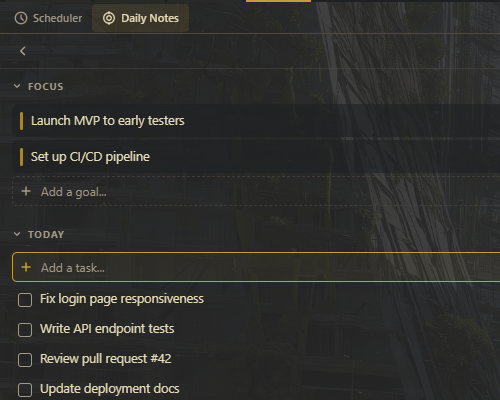
Daily Notes is a lightweight productivity sidebar for tracking goals, tasks, and quick notes while you work. Notes are organized per-workspace and per-date, giving each project its own daily context. AI agents can also read and write notes, turning Daily Notes into a shared progress log.
Opening Daily Notes
Toggle the Daily Notes panel with Ctrl+Shift+K. It appears in the sidebar dock alongside other panels like the file explorer, project board, and scheduler.
Three Sections
The Daily Notes panel is divided into three sections, each serving a different purpose.
Focus Goals
Persistent, global goals that are not tied to any specific date or workspace. Focus Goals stay visible regardless of which workspace is active or what day it is. They represent your big-picture objectives.
| Characteristic | Details |
|---|---|
| Scope | Global -- visible in every workspace |
| Date-scoped | No -- persists until manually removed |
| Purpose | Ongoing objectives that span days or weeks |
Use Focus Goals for items like "Ship v2.0 by Friday," "Reduce test suite runtime below 30s," or "Finish auth refactor." They remain at the top of the panel as a constant reminder of what matters most.
Tip: Keep your Focus Goals list short -- 3 to 5 active goals. If you have more, consider moving lower-priority items to the Project Board backlog and keeping Focus Goals for what you are actively working toward this week.
Today's Tasks
A per-workspace, per-date checklist. Each task has a checkbox you tick off as you complete it.
| Characteristic | Details |
|---|---|
| Scope | Per-workspace -- switching workspaces shows that workspace's tasks |
| Date-scoped | Yes -- each day has its own task list |
| Purpose | Concrete to-do items for today |
Tasks are the actionable items you plan to finish today. They are intentionally scoped to a single workspace and date:
- Switch workspaces and you see that workspace's tasks, not all tasks
- Navigate to a different date and you see that day's tasks, not today's
- Check off completed items to track progress through the day
Quick Notes
A per-workspace, per-date freeform text area. Write anything: ideas, links, observations, meeting notes, debugging clues, code snippets.
| Characteristic | Details |
|---|---|
| Scope | Per-workspace -- each workspace has its own notes |
| Date-scoped | Yes -- each day has its own text area |
| Purpose | Unstructured capture for anything that does not fit a task |
Quick Notes are for the things that do not fit neatly into a checkbox. A URL you need to revisit, a weird error message you want to investigate later, a conversation summary -- anything worth writing down.
Date Navigation
Use the arrow buttons at the top of the panel to browse previous days. This lets you:
- Review what you worked on yesterday or last week
- Check notes from a specific date when debugging a regression
- See the progression of goals and tasks over time
- Navigate forward to return to today
Each workspace maintains its own independent date history, so navigating dates in one workspace does not affect another.
Persistence
All Daily Notes data is saved automatically:
- Survives application restarts without any manual save action
- Each workspace maintains its own independent history of tasks and notes
- Focus Goals persist globally across all workspaces
You never need to worry about losing your notes -- they are written to disk as you type.
AI Agent Integration
AI agents can interact with Daily Notes programmatically. This turns the notes panel into a shared progress log between you and your agents.
What Agents Can Do
- Add or manage focus goals
- Add tasks to today's list for the current workspace
- Read the current notes content (goals, tasks, or quick notes)
- Write or replace notes content
- Get a summary of today's notes across all sections
- Clear completed tasks to keep the list clean
Agent Workflow Example
Here is how agents can use Daily Notes in a team orchestration workflow:
- Orchestrator sets focus goals at the start of the session
- Worker agents add tasks as they identify work items
- Workers check off tasks as they complete them
- Workers add notes and observations to Quick Notes
- At the end of the session, the orchestrator gets a daily recap
- Completed tasks are cleaned up, leaving only what is still open
Tip: Even if you are not using team orchestration, a single agent can update your Daily Notes as it works. When you come back to check on an agent's progress, the notes panel shows exactly what happened -- which files were changed, what decisions were made, and what is still outstanding.
Keyboard Reference
| Shortcut | Action |
|---|---|
| Ctrl+Shift+K | Toggle daily notes sidebar panel |
Related
- Sidebar System -- how sidebar panels are docked and arranged
- Agent Orchestration -- agents using daily notes for progress tracking
- Project Board -- for more structured task management with columns and GitHub sync
- Snippets -- another sidebar panel for quick command access