Project Board
Local kanban board with GitHub Issues sync, drag-to-terminal agent launching.
Project Board
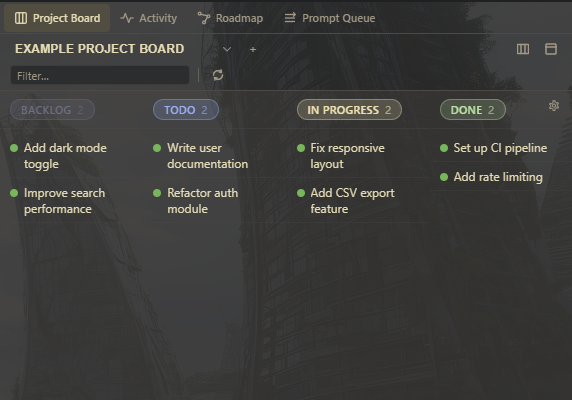
The Project Board is a built-in kanban board for managing tasks directly inside Mosaic. It syncs bidirectionally with GitHub Issues, supports drag-to-terminal agent launching, and integrates with the work claiming system so cards move automatically as agents work.
Opening the Board
Toggle the Project Board with Ctrl+Q. It appears in the sidebar dock and can be positioned on any edge of the window.
Board and List Views
The board supports two display modes, switchable from the view toggle:
Board View
Classic kanban with drag-and-drop cards between columns. Cards flow left to right through your workflow stages. Drag a card from "Todo" to "In Progress" to signal that work has started.
List View
A table layout with sorting and grouping options. Better for scanning many items at once or when you need to see metadata that does not fit on a kanban card.
Default Columns
| Column | Purpose |
|---|---|
| Backlog | Ideas and future work not yet planned |
| Todo | Ready to start -- prioritized and scoped |
| In Progress | Currently being worked on (by you or an agent) |
| Review | Awaiting review, testing, or verification |
| Done | Completed |
Column Settings
Columns are fully customizable:
| Setting | Description |
|---|---|
| Name | Rename columns to match your workflow |
| Color | Visual distinction between stages |
| WIP limit | Set a maximum number of cards per column |
| Column mapping | Map columns to GitHub project board statuses for sync |
Working with Cards
Quick Add
Create tasks directly from the board header. Enter a title and the card is added to the default column immediately -- no forms, no dialogs.
Card Display Options
Customize what information appears on cards:
- Labels and tags
- Assignees
- Priority indicators
- Link to GitHub issue (when synced)
- Other metadata fields
Adjust card density in the board settings to keep cards clean or information-rich depending on your preference.
Task Detail View
Click any card to open a full detail view with:
- Markdown-rendered description with full support for tables, task lists, code blocks, and blockquotes
- Editor toolbar for formatting text without writing raw markdown
- Labels, assignees, and status fields for metadata
- Direct link to the GitHub issue when synced
- Edit in place -- modify the task description directly from the detail view
Tip: The task detail view renders the same markdown as GitHub Issues, so issue descriptions look the same in Mosaic as they do on GitHub. You can edit them in either place and the changes sync.
GitHub Issues Sync
The Project Board integrates with GitHub Issues for fast, efficient syncing.
Setup
Configure the GitHub connection per workspace:
- Open Settings > CI Status (or the workspace settings)
- Set the repository (e.g.,
owner/repo) - Set the branch to track
- The board auto-discovers the GitHub project and maps columns to statuses
Sync Behavior
| Feature | Details |
|---|---|
| Direction | Bidirectional -- changes flow both ways |
| Auto-sync on move | Drag a card to a different column and the GitHub issue status updates |
| Auto-sync on update | Edit a card title or description and it syncs to GitHub |
| Metadata sync | Labels, assignees, and status are kept in sync |
| Per-workspace config | Each workspace can connect to a different GitHub repository |
Tip: The bidirectional sync means you can manage issues from either Mosaic or GitHub. Teammates who do not use Mosaic can update issues on GitHub, and those changes appear on your board automatically.
Drag to Terminal
One of the most powerful features of the Project Board: drag an issue card directly onto a terminal pane to launch an AI agent with that issue as context.
How It Works
- Pick up a card from the board
- Drop it onto any terminal pane
- An AI agent launches with the issue title, description, and metadata as its initial prompt
- The agent starts working on the issue immediately
This bridges task management and execution in a single gesture. You go from "here is what needs to be done" to "an agent is doing it" with one drag.
What the Agent Receives
The agent gets the full issue context:
- Issue title and number
- Full description (markdown body)
- Labels and priority
- Any linked issues or dependencies
This is enough context for the agent to understand the task and begin working without additional prompting.
Tip: Write detailed issue descriptions with acceptance criteria. The more context in the issue body, the better the agent performs when launched via drag-to-terminal. Treat your issue descriptions as prompts.
Work Claiming Integration
When combined with agent orchestration, the board updates automatically based on what agents are doing:
| Agent Event | Board Action |
|---|---|
| Agent claims a task | Card moves to "In Progress" |
| Agent completes a task | Card moves to "Done" |
| Claim expires (lease timeout) | Card returns to previous column |
| Agent errors | Card remains in "In Progress" with error status |
Zero Overhead
No manual card dragging needed for agent-driven workflows. The board reflects the actual state of work in real time:
- An agent claims an issue -- the card moves to "In Progress"
- The agent finishes -- the card moves to "Done"
- If the agent crashes and the lease expires -- the card returns to its previous state
This means the board always shows the true state of your project without manual upkeep.
Cross-System Dedup
Tasks are deduplicated across the Project Board and Roadmap via issue numbers. Claiming a task on the board is reflected in the roadmap, and vice versa. No double-work, even when the same issue appears in both views.
Keyboard Reference
| Shortcut | Action |
|---|---|
| Ctrl+Q | Toggle project board sidebar panel |
Related
- Agent Orchestration -- agents claiming and completing board tasks automatically
- Roadmap -- dependency graph and iteration planning that feeds into the board
- Daily Notes -- lightweight daily task tracking alongside the board
- Sidebar System -- docking and arranging sidebar panels
- Scheduler -- automate task creation or board maintenance on a schedule