
Scheduler
Automate tasks with cron schedules, file watchers, and Claude CLI prompts.
Scheduler
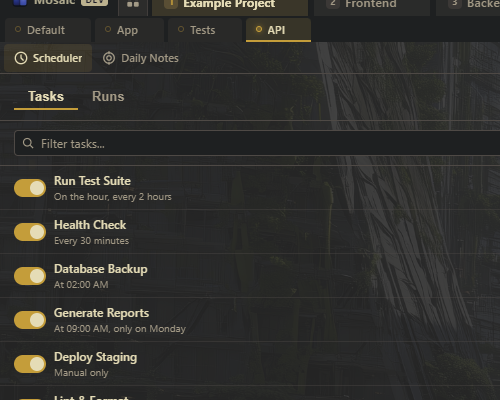
The Scheduler automates recurring tasks inside Mosaic. Set up cron jobs, file watchers, or interval timers that execute shell commands or Claude CLI prompts -- with run history, timeout enforcement, webhook notifications, and git auto-commit on completion.
Opening the Scheduler
Toggle the Scheduler panel with Ctrl+J. It appears in the sidebar dock alongside other panels.
Trigger Types
Each scheduled task uses one of three trigger types that determine when the task runs.
Cron
Standard five-field cron expressions: minute hour day-of-month month day-of-week.
| Expression | Runs |
|---|---|
*/15 * * * * | Every 15 minutes |
0 9 * * 1-5 | 9:00 AM on weekdays |
0 0 * * * | Midnight daily |
0 */4 * * * | Every 4 hours |
0 2 * * 0 | 2:00 AM every Sunday |
30 12 1 * * | 12:30 PM on the 1st of each month |
Cron triggers are best for tasks that need to run at specific times or on a calendar-based schedule.
Interval
Run a task every N seconds. Simpler than cron when you just need "every X minutes."
| Interval | Runs |
|---|---|
60 | Every minute |
300 | Every 5 minutes |
3600 | Every hour |
86400 | Once per day |
Interval triggers start counting from when the task is enabled or the app starts.
File Watch
Trigger when files matching a glob pattern are created, modified, or deleted.
| Pattern | Watches |
|---|---|
./src/**/*.ts | Any TypeScript file in src/ |
./tests/**/*.test.ts | Test files only |
./package.json | A specific file |
./**/*.{css,scss} | CSS and SCSS files anywhere |
File watch triggers use debouncing to avoid firing repeatedly during rapid saves (e.g., when a formatter runs across many files).
Tip: File watch triggers are the foundation for "auto-run on save" workflows. Watch your source files and run the test suite, linter, or formatter automatically whenever you save. No more forgetting to run tests.
Action Types
Each task executes one of two action types when triggered.
Shell Command
Run any shell command. The command executes in the workspace's default working directory and supports full shell syntax including pipes, redirects, and chained commands.
Examples:
npm run test
npm run build && npm run lint
git status | head -20
./scripts/deploy.sh --env staging
Claude CLI Prompt
Send a prompt to the Claude Code CLI. Mosaic spawns a Claude session, passes your prompt, waits for completion, and records the output.
Examples:
Summarize yesterday's git commits and note any breaking changes
Review the files changed in the last hour for potential bugs
Generate API documentation for src/api/
Claude CLI prompts turn the scheduler into an autonomous code review and maintenance system. The agent runs on your schedule, examines your code, and produces reports or makes changes.
Tip: Combine cron triggers with Claude prompts for powerful automated workflows. Schedule a nightly prompt that reviews the day's changes for code quality issues, or a weekday morning prompt that summarizes what happened overnight.
Run History and Timeline
Every task execution is recorded with full details:
| Field | Description |
|---|---|
| Start time | When the run began |
| End time | When the run finished |
| Duration | How long the run took |
| Exit code | 0 for success, non-zero for failure |
| Output | Full stdout and stderr content |
| Status | Succeeded, failed, or timed out |
Timeline View
The timeline view provides a visual representation of scheduled and completed runs on a horizontal timeline. This makes it easy to:
- Spot patterns (does the linter always fail at 2 AM?)
- Identify failures at a glance
- See how long runs typically take
- Verify that scheduled runs are actually firing
Timeout Enforcement
Set a maximum execution time per task. If a task exceeds its timeout:
- The process is terminated (the shell command or Claude session)
- The run is recorded as timed out
- Webhook notifications fire with the timeout status
This prevents runaway scripts from consuming resources indefinitely. A deploy script that normally takes 2 minutes but hangs for 30 minutes gets caught and stopped.
Tip: Set timeouts generously at first (2-3x the expected run time), then tighten them once you have baseline timing data from the run history.
Webhook Notifications
Each task can send notifications when it completes, through one or more webhook providers:
| Provider | Notification Format |
|---|---|
| Discord | Rich embeds showing task name, status, duration, and output excerpt |
| ntfy | Push notifications to your phone or desktop via ntfy.sh |
| Telegram | Bot messages to a Telegram chat |
What Gets Sent
Webhook notifications include:
- Task name and description
- Status -- succeeded, failed, or timed out
- Duration -- how long the run took
- Output excerpt -- first/last lines of output (for Discord embeds)
- Error details -- error content on failure
Configure webhook URLs per task in the task settings. You can enable notifications for all runs, or only for failures.
Tip: Use ntfy for phone push notifications when monitoring critical scheduled tasks. A failed nightly backup or a broken test suite sends a notification directly to your phone, so you know about it before you start working the next morning.
Git Auto-Commit
Enable automatic git commits after successful task completion. When a scheduled task finishes and there are uncommitted changes in the working directory:
- Mosaic stages the changed files
- Creates a commit with a descriptive message referencing the task name
- The commit appears in your git history with clear provenance
This is useful for tasks that generate or modify files:
| Task | Auto-Commit Use Case |
|---|---|
| Code formatting | Commit formatted files automatically |
| Dependency updates | Commit package-lock.json after npm update |
| Code generation | Commit generated API clients or types |
| Documentation | Commit auto-generated docs |
Tip: Combine git auto-commit with webhook notifications: the task runs, commits changes, and notifies you that the commit was made. You can review it at your convenience.
Enable and Disable
Toggle individual tasks on or off without deleting them. Disabled tasks:
- Retain their full configuration (trigger, action, timeout, webhooks)
- Keep their run history intact
- Do not fire their triggers
- Can be re-enabled at any time
This is useful for temporarily pausing a task during development, debugging, or when you need to reduce system load.
Example Use Cases
Here are practical scenarios for each trigger type:
File Watch Examples
| Pattern | Action | Purpose |
|---|---|---|
./src/**/*.ts | npm run test | Auto-run tests on save |
./src/**/*.{ts,tsx} | npx prettier --write changed files | Auto-format on save |
./openapi.yaml | npx openapi-generator ... | Regenerate API client on spec change |
./docs/**/*.md | npm run build:docs | Rebuild docs on content change |
Cron Examples
| Schedule | Action | Purpose |
|---|---|---|
0 9 * * 1-5 | Claude: "Summarize yesterday's commits" | Morning git summary |
0 2 * * * | ./scripts/deploy.sh | Nightly deployment |
0 */4 * * * | curl -f http://localhost:3000/health | Health check every 4 hours |
0 0 * * 0 | Claude: "Review this week's TODOs and open issues" | Weekly review |
Interval Examples
| Interval | Action | Purpose |
|---|---|---|
| 300 (5 min) | git fetch --all | Keep local refs updated |
| 3600 (1 hr) | npm audit --production | Hourly security check |
| 60 (1 min) | curl -s http://localhost:8080/metrics | Metrics polling |
Keyboard Reference
| Shortcut | Action |
|---|---|
| Ctrl+J | Toggle scheduler sidebar panel |
Related
- Agent Orchestration -- agents managing scheduled tasks programmatically
- Project Board -- task management that can trigger scheduled actions
- Sidebar System -- docking and arranging the scheduler panel
- Daily Notes -- track what scheduled tasks accomplished today