
File Viewer & Editor
Built-in code editor, markdown preview, image viewer, log viewer, and diff panel.
File Viewer & Editor
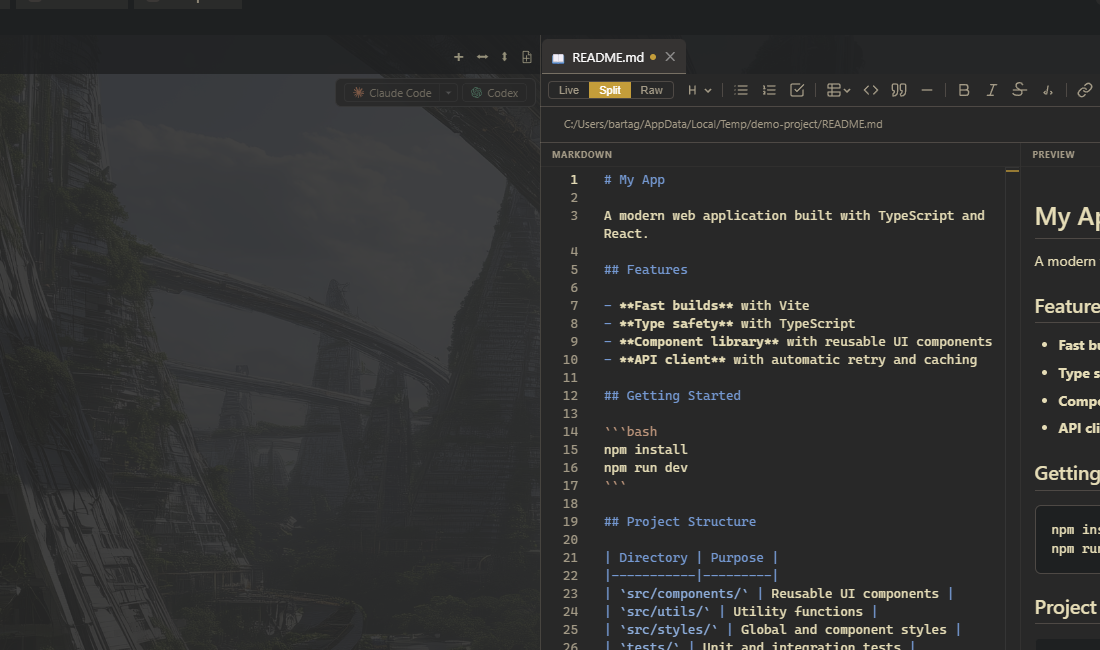
Mosaic bundles a complete file viewing and editing suite alongside your terminal panes. Open files from the file explorer, clickable terminal links, or the command palette -- they appear beside your terminal in a separate panel group, keeping your terminal visible while you work with files.
Code Editor
The built-in editor provides a VS Code-like editing experience directly inside Mosaic.
| Feature | Details |
|---|---|
| Language support | 50+ languages with syntax highlighting out of the box |
| Autocomplete | IntelliSense for JSON, CSS, HTML, and TypeScript |
| Save | Ctrl+S writes changes back to disk |
| Find | Ctrl+F to search within the current file |
| Dirty indicator | A dot appears on the tab when you have unsaved changes |
Untitled Documents
Press Ctrl+N to create a new untitled document. The tab shows a dirty indicator until you save it to a file path. Useful for scratch notes, temporary scripts, or composing text before pasting elsewhere.
Markdown Preview
Mosaic renders markdown with full GitHub Flavored Markdown (GFM) support:
- Tables -- standard GFM table syntax with alignment
- Task lists -- checkboxes that render interactively
- Code blocks -- syntax highlighting for all major languages
- Mermaid diagrams -- rendered inline from fenced code blocks
- Blockquotes -- nested blockquote rendering
- Images -- inline and referenced images
- Inline code and links -- standard markdown formatting
Side-by-Side Edit and Preview
For .md files, you can work in a split view with the editor on one side and a live preview on the other. Changes in the editor update the preview in real time.
A table editor is also available for editing markdown tables visually -- useful when working with wide or complex tables that are hard to manage in raw markdown.
Auto-Refresh
Both the markdown preview and the file editor automatically refresh when the underlying file changes on disk. External edits from git operations, build tools, or other editors appear immediately without requiring a manual reload.
Tip: Use Ctrl+F within the markdown preview to search rendered content -- this searches the rendered output, not the raw markdown source.
Image Viewer
Image files (PNG, JPG, GIF, and other common formats) open in a dedicated viewer:
- Pan by clicking and dragging
- Zoom with scroll wheel or controls to inspect fine details
Log Viewer
Large files open in a specialized log viewer instead of the standard editor. This is designed for build logs, server output, and other large text files.
| Feature | Details |
|---|---|
| Large file support | Efficiently handles files that would freeze a traditional text editor |
| ANSI-aware | Color codes, bold, underline, and other escape sequences render correctly |
| Live tail | Follows appended output in real time -- useful for watching log files as they grow |
Tip: The log viewer handles files that would freeze a traditional text editor. If you need to inspect a multi-gigabyte log file, this is the tool for the job.
Diff Panel
The diff viewer supports multiple display modes for comparing file versions:
| Mode | Description |
|---|---|
| Unified | Single column with additions (green) and deletions (red) inline |
| Split | Side-by-side comparison with synchronized scrolling |
| Full file | Complete file contents with changes highlighted in context |
Context sections between changes are collapsible, letting you focus on the modifications that matter. Expand them when you need surrounding context.
Opening Files
Files can be opened from several entry points:
| Source | Behavior |
|---|---|
| File explorer click | Opens the file in the appropriate viewer (editor, markdown, image) |
Terminal .md paths | Clickable markdown file paths open in the markdown preview. Supports Windows, Unix, and MSYS path formats (e.g., /d/project/README.md converts to D:\project\README.md) |
Terminal file:line:col paths | Stack traces and compiler errors open the file at the exact line and column |
| Command palette (Ctrl+P) | Fuzzy file search opens the selected file |
Panel Reuse
Mosaic reuses existing file panels intelligently:
- If the same file is already open, its tab activates instead of opening a duplicate
- If a different file is opened, the existing panel navigates to the new file rather than creating a new panel
- File panels always open beside your terminal, not in the terminal's tab group, keeping your shell visible
Quick Reference
| Shortcut | Action |
|---|---|
| Ctrl+S | Save file to disk |
| Ctrl+F | Find in file or markdown preview |
| Ctrl+N | Create new untitled document |
| Ctrl+P | Open file via fuzzy search |
Related
- File Explorer -- browse and manage files in the sidebar tree
- Terminal -- clickable file paths link terminal output to the file viewer
- Sidebar System -- dock the explorer beside your editor panels