
Git View
A built-in git client over your terminals: commit graph, staging down to single lines, diffs, and a merge conflict resolver.
Git View
Mosaic includes a git client that lives where your agents work. It has two surfaces: a full view that opens over the terminal grid for history, branches, and merges — and a docked panel that sits beside a running terminal for the everyday loop of see what changed, stage it, commit it. It uses the git you already have installed; nothing is bundled and no repo configuration is written.
Opening it
| Entry point | What it does |
|---|---|
| Branch name in the status bar | Shows the current branch with ahead/behind counts (main ↑2). Click to open the full view; click again (or Esc) to go back. |
| Ctrl+Shift+V | Toggles the full view over the terminal grid. |
| Ctrl+Alt+G or the Git titlebar button | Toggles the docked git panel. |
| Right-click a context tab → Open Git View | Opens the full view on that context's repository. |
| Command palette | Git: Open Git View (this repository). |
The full view is deliberately transient: it covers the terminal grid and nothing else — the title bar, context tabs, docks, and status bar stay put — and closing it restores your layout exactly, because nothing about the layout was touched. It never leaves a tab behind.
The full view
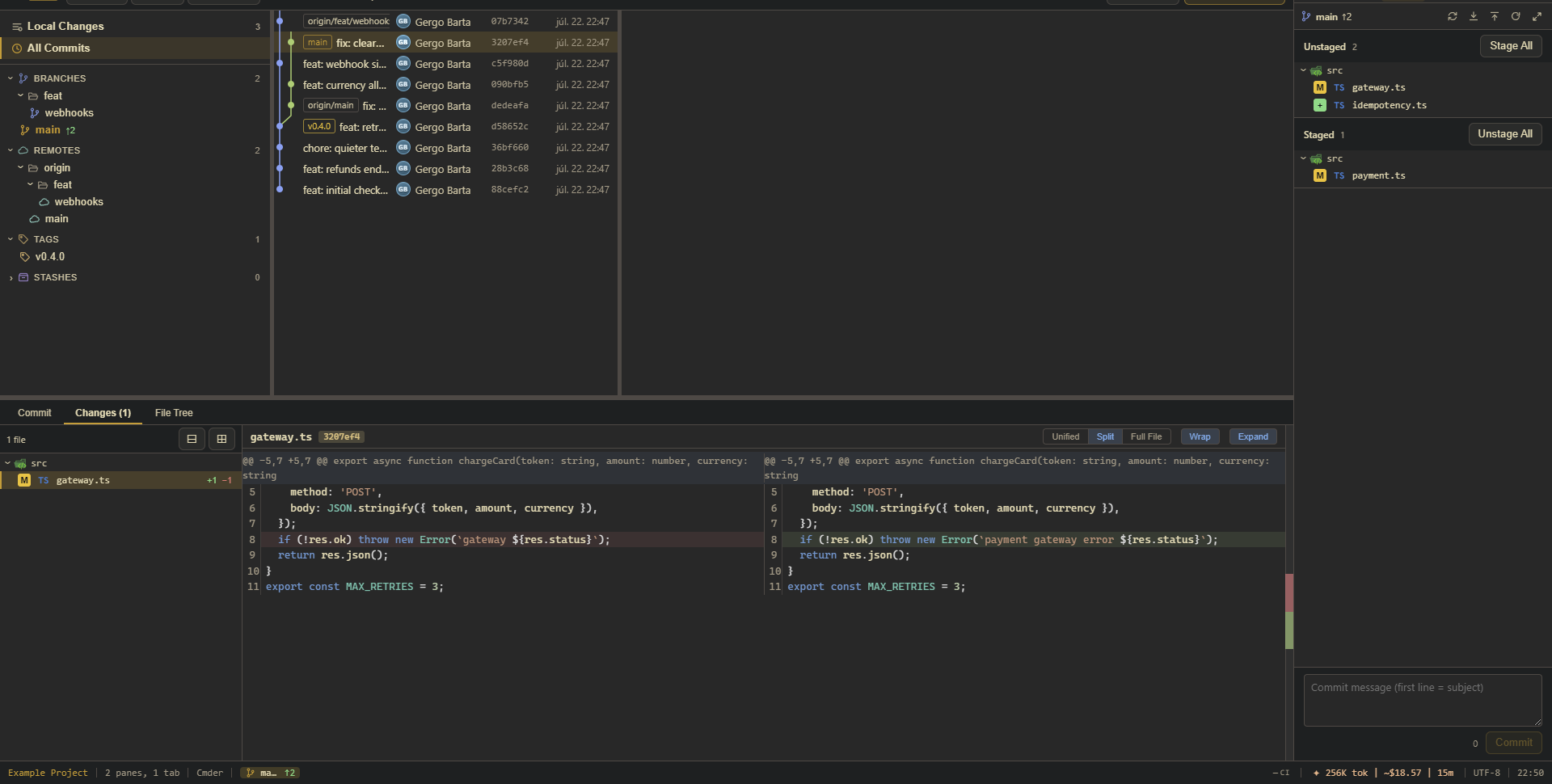
The left sidebar switches between Local Changes and All Commits, and lists your branches (folder-grouped), remotes, tags, stashes, worktrees, and submodules. Checkout a branch by clicking it; create branches from the toolbar.
All Commits shows the history as a commit graph with branch/tag badges. Selecting a commit opens a detail panel with three tabs: Commit (author, refs, SHA, message, changed files), Changes (the file tree of the commit with a diff view), and File Tree (browse the whole repository as it stood at that commit, and read any file at that revision).
Local Changes is the staging surface:
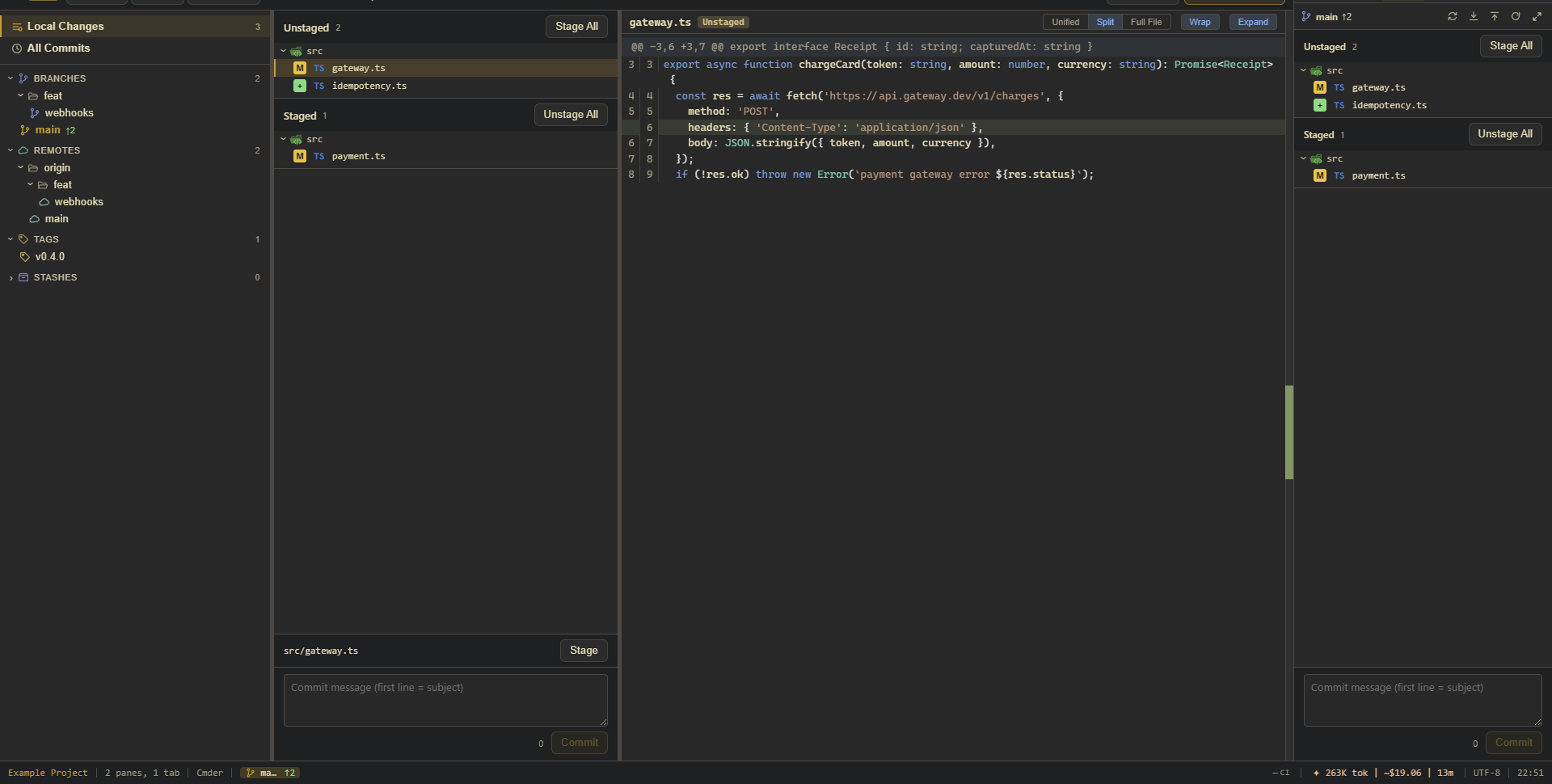
- Unstaged and staged files as folder trees, with per-file and per-folder stage/unstage, Stage All, and discard from the context menu.
- Diffs render unified, split, or full-file, with syntax highlighting and optional line wrapping. Large and binary files show a placeholder instead of being loaded.
- Partial staging: stage a single hunk with its button, select individual lines and stage just those — or double-click a changed line to stage exactly that line. In the staged view the same actions unstage.
- A commit box with a subject-length counter.
Pull, push, fetch
The toolbar carries the three network operations with proper dialogs: remote picker, branch info with ahead count, and options that remember their last state (rebase, autostash, prune, tags, force-with-lease). Push offers force-with-lease rather than a bare force — it refuses to overwrite commits your clone has never seen. If the repository has no remote yet, the Pull dialog can add one inline and fetch it immediately.
Merge conflicts
When a merge, rebase, cherry-pick, or revert stops on conflicts, the view offers a three-pane resolver: both sides at the top (labeled with the real branch names), and an editable result below with each conflict marked.
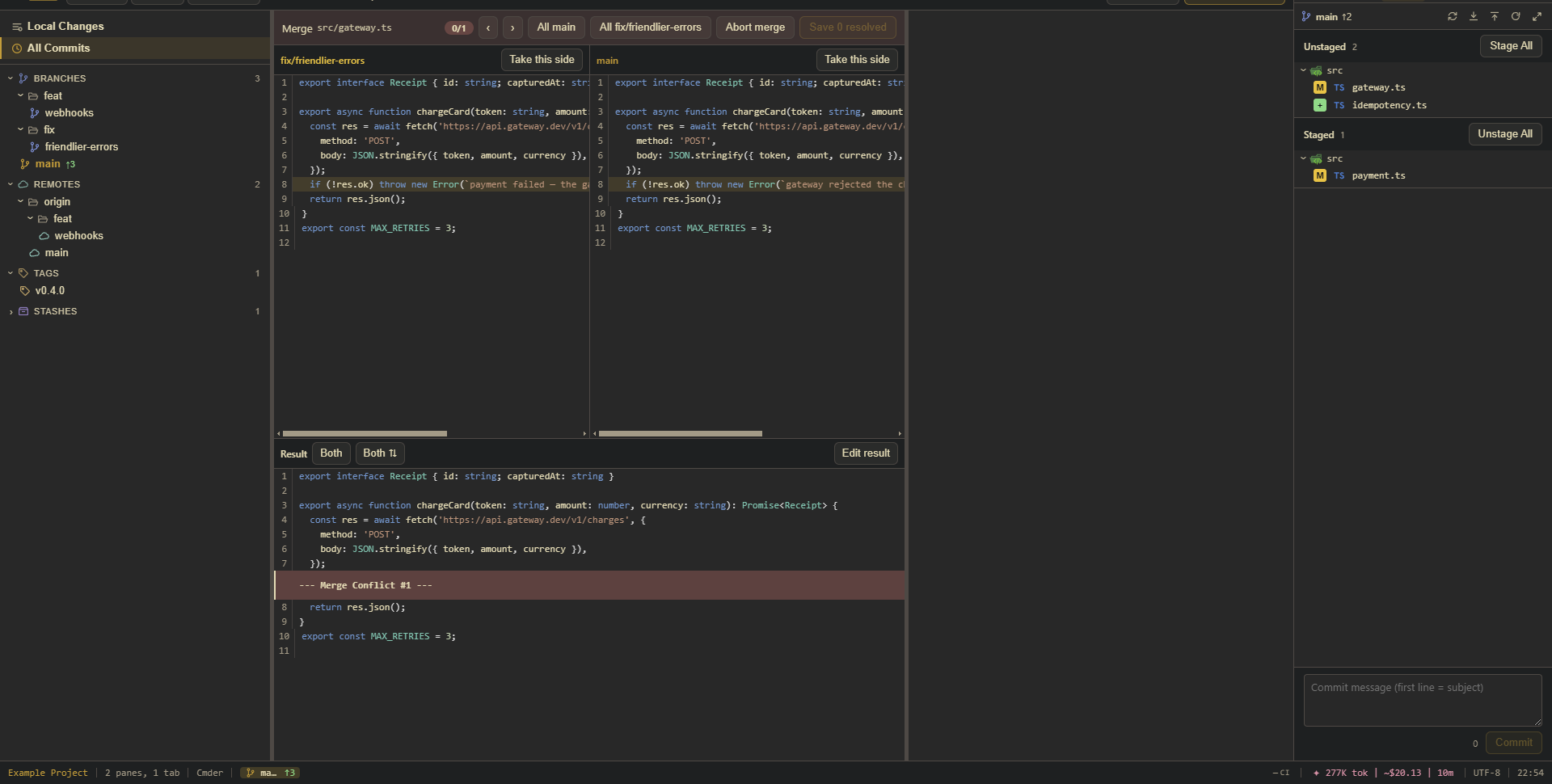
Step through conflicts with the counter, take either side per conflict, take both (in either order), take one side for everything, or edit the result by hand — the edited text wins. Abort hands control back to git's own --abort.
The docked panel
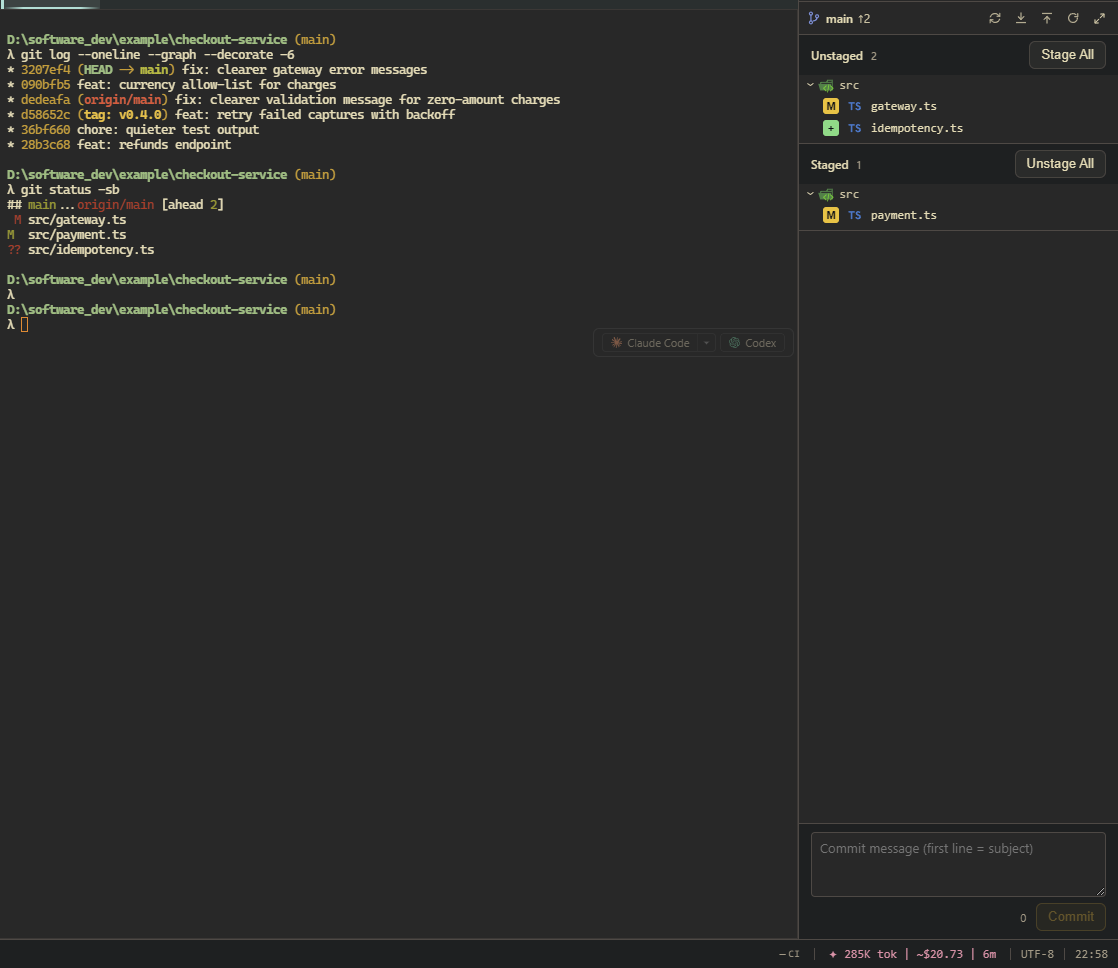
The docked panel is for working alongside an agent: current branch with ahead/behind, fetch/pull/push, the changes tree with staging, and a commit box. In a narrow dock, clicking a file opens its diff beside the terminal rather than squeezing it into the panel. Given real width — the bottom dock, or the panel's maximize button — it becomes the full git view. If a merge is in progress, a conflict banner takes you straight to the resolver.
Changes you make from a terminal show up on their own: stage, commit, or checkout in a shell — including anything your agents run — and the git surfaces reflect it immediately. No refresh button, and no background cost while they're closed.
Requirements and settings
- Uses the git on your PATH. If none is found, the git surfaces point you to the installer for your platform — nothing else needs configuring.
- The whole module can be switched off in Settings → Behavior if you don't want it; every entry point disappears.
- Submodules are listed in the sidebar with their state. A submodule's own uncommitted files don't appear in the parent repository's changes list — stage those from the submodule's own repository. (This also keeps the view fast on repositories with many submodules.)
Not in yet
Honest list: stash apply/pop/drop, branch delete/rename, tag creation, cherry-pick and revert from the graph, commit amend, interactive rebase, file history, and blame are not in the git view yet. For those, your terminal (or your usual git client) is still the way.